Extension 0.1.81:Score Reviews under your lineups, a dark design and a stop for Import all
The new version of the SoProb extension shows under every football lineup on Sorare which scores changed after the match. It comes in a light and a dark design, and a running Import all can be stopped.
Version 0.1.81 of the SoProb extension is out. It brings the Score Reviews to your lineups on Sorare, a dark design, a stop button for Import all and the lineup import for Sorare's NBA Pro board.
Score Reviews under every football lineup
After a match Sorare still corrects scores. Under each of your football lineups on Sorare, in Pro, Arena and Set, the extension now lists the players whose score changed since their match:
- Initial: the score right after the match.
- Now: the score as it stands.
- Δ: the difference, green when the score went up and red when it went down.
The line below sums up the changes of the lineup, before bonuses. In Pro the panel also shows the distance to the target. A lineup without a changed score says so in one line.
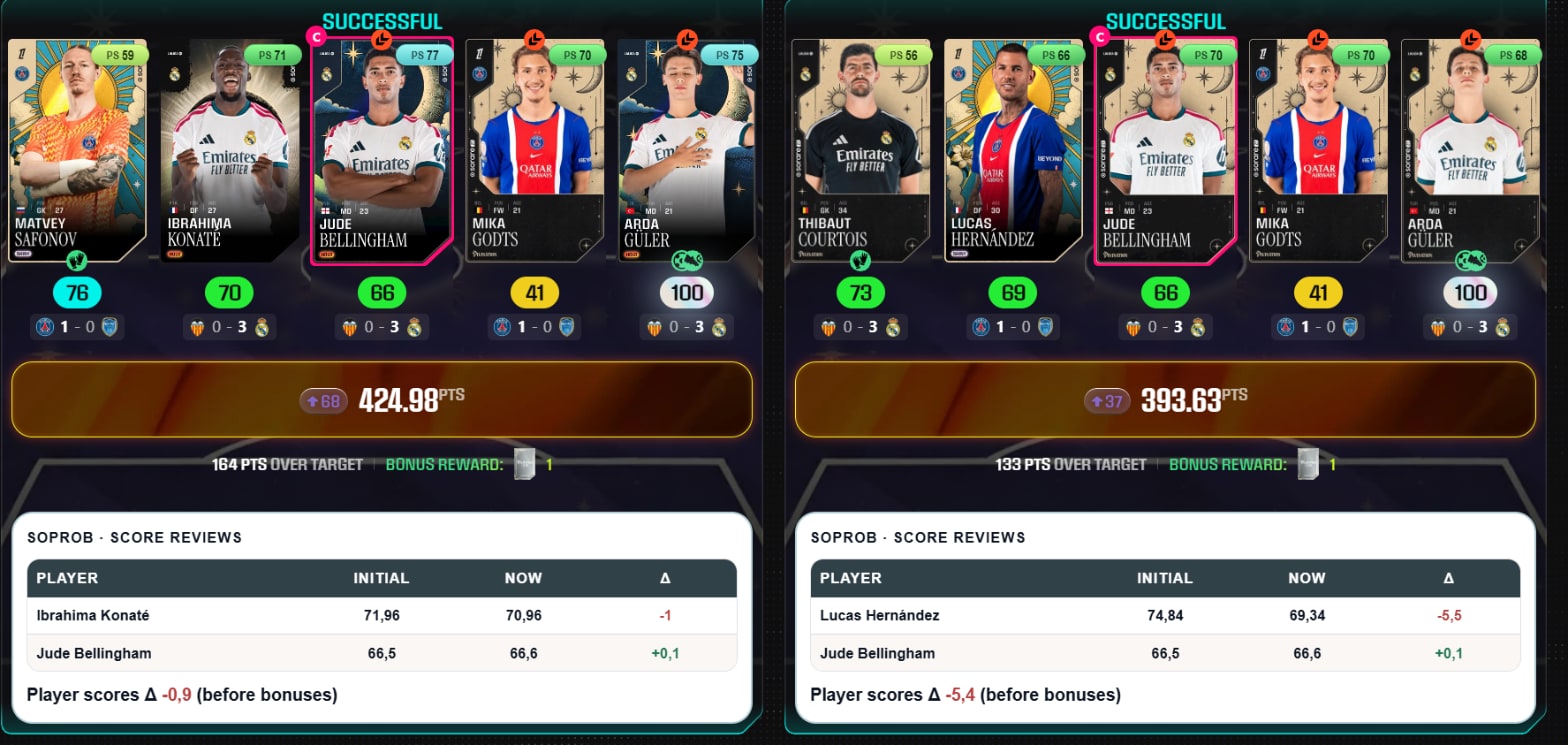
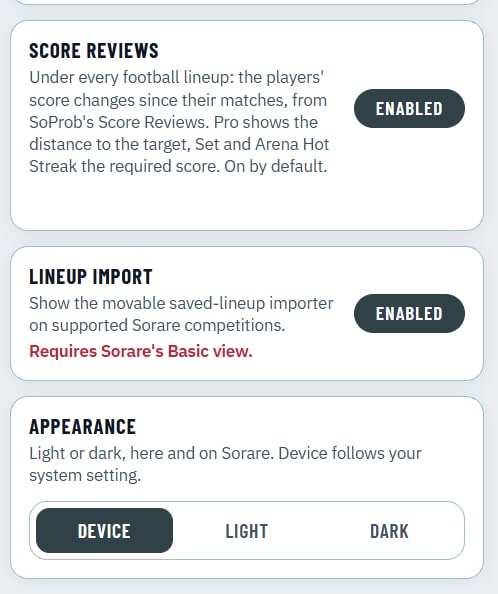
The panel is on by default. The switch Score reviews in the extension's popup turns it off.
Light or dark
Everything the extension shows on Sorare, the panels, the menus and the import window, now comes in a light and a dark design, and so does the popup.
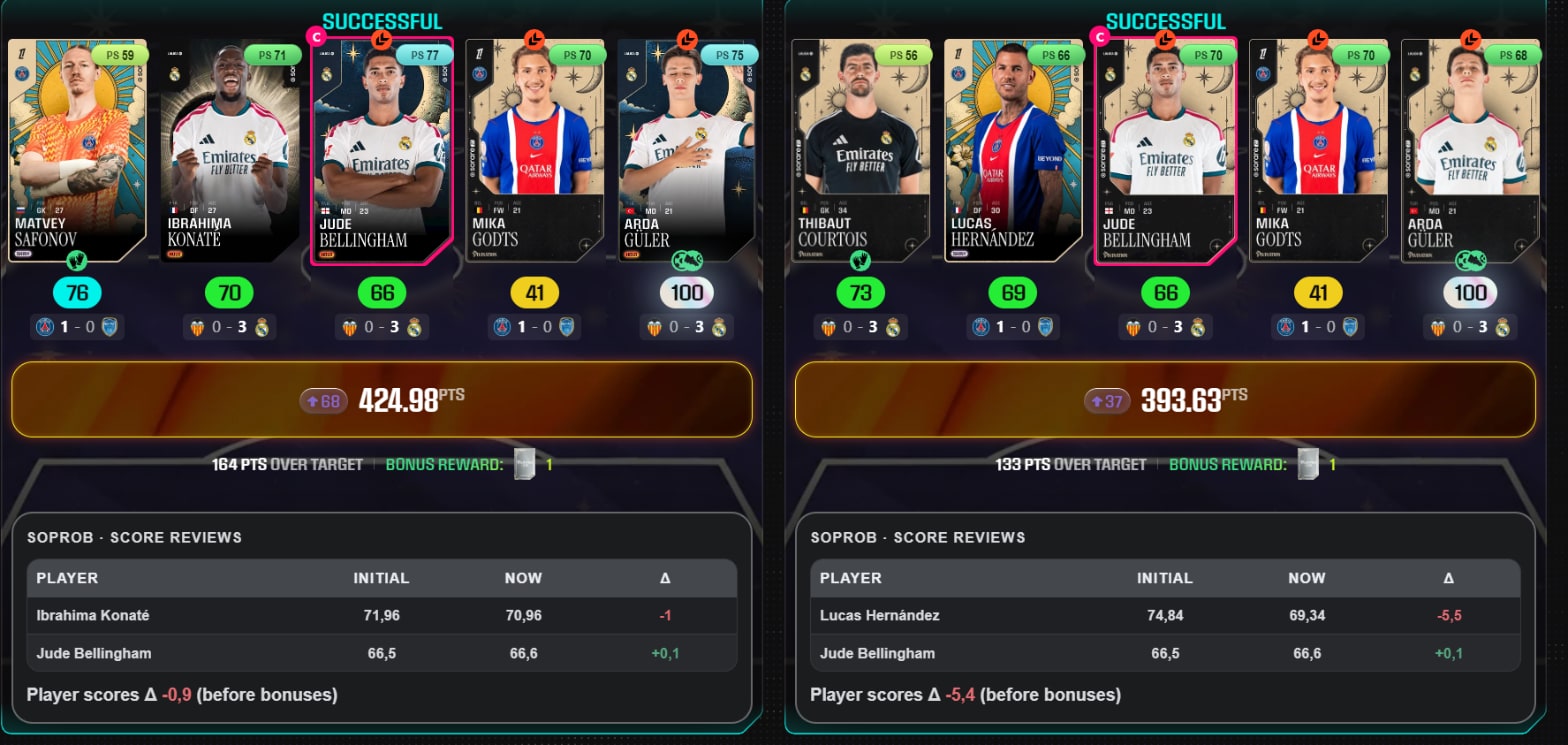
Under Appearance in the popup you choose Device, Light or Dark. Device follows the setting of your computer or phone.
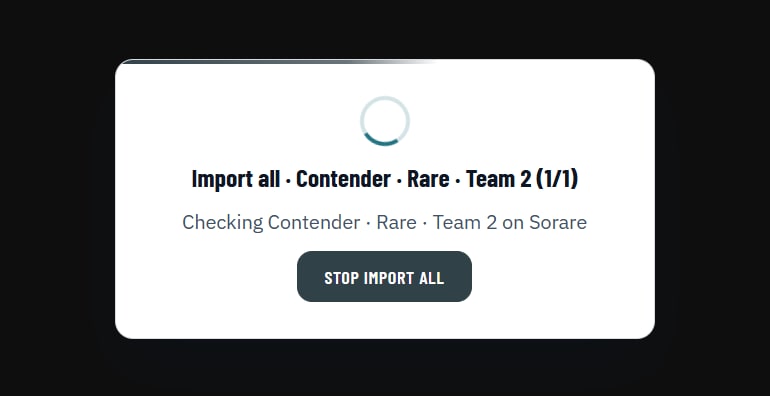
Stop a running Import all
Import all fills in one team after the other, and between two teams Sorare shows pages on which the import panel is not there. The window of a running Import all now carries the button Stop Import all. It ends the run at once; a team that is being filled in at that moment stops at its next card.
Also new
- NBA Pro: the lineup import now also works on Sorare's NBA Pro board, with the teams you saved in the NBA Lineup Builder.
- Set-piece badge: it knows the role X for free-kick crosses, next to F for direct free kicks, C for corners and P for penalties.
- Clearer messages: when Sorare does not confirm a card, the import says so in plain words.
- The extension's texts, buttons and colours follow the website.
How to update
- Chrome, Edge, Brave, Orion and Titanium: click Download in the popup or on the extension page, replace the files, then click Reload extension in the popup and refresh Sorare. Your connection and settings stay.
- Firefox: the new version installs by itself, usually within a day.