Filter Update:One Layout on Every Tab, Chips and Column Filters
The filters of every tab sit in the same framed groups, the closed filter bar shows each filter you set as a chip, and the funnel in a column header sets that column's filter right in the table.
The Data Filters and Advanced Filters of every tab now follow one layout. The filters sit in framed groups with the same names on every tab, the closed filter bar shows the filters you set as chips, and since 20 October the header of a column opens that column's filter right in the table.
Filter right in the column header
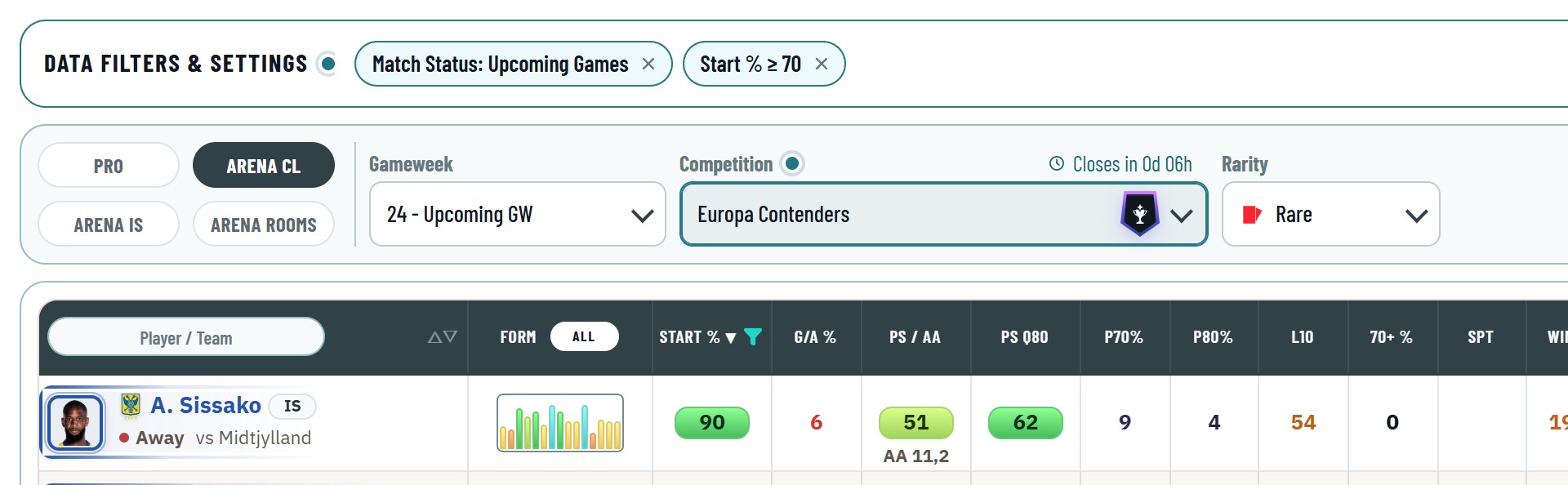
- Point at the name of a column: a funnel appears beside it when one of the tab's filters narrows that column.
- A click on the funnel opens the very field of the Data Filters below the column, so you set the filter without leaving the table.
- The field, its chip and the Data Filters always show the same value: change one and the others follow.
- A filled funnel marks a column you have filtered. Reset sets this one filter back; Done, Escape or a click beside the field closes it.
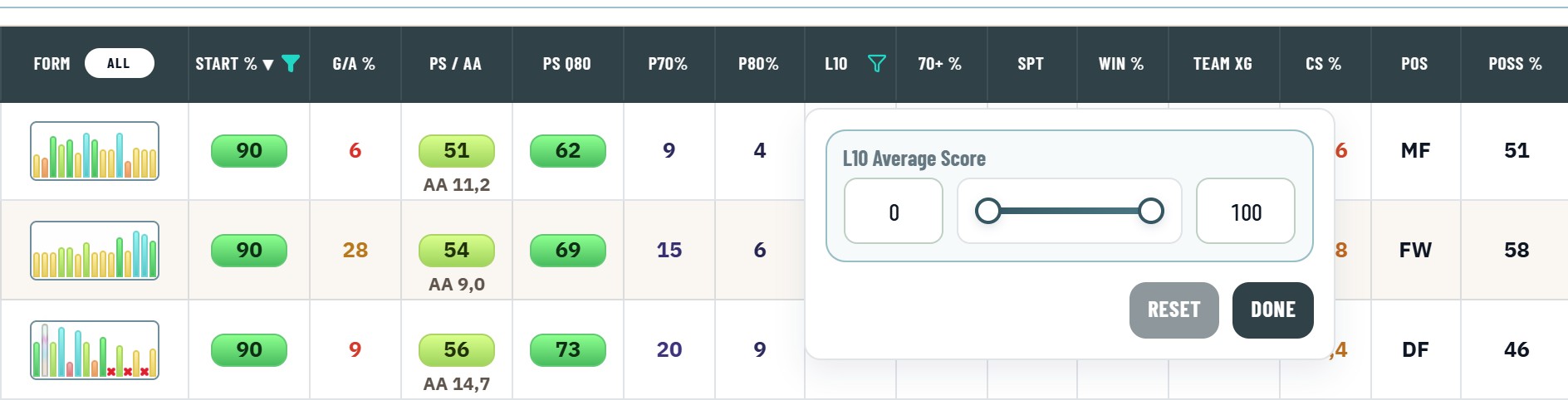
The funnel sits on every column a filter narrows: Start %, the projected score, L10, Value, the match forecast and player performance columns, Position, Team, the prices, the date (it opens the Timeframe), Rarity, Sealing, Collection, Deviation and the GW of the balances. A column without a filter of its own, such as Form or P70%, keeps its plain header. Football and NBA tabs work the same.
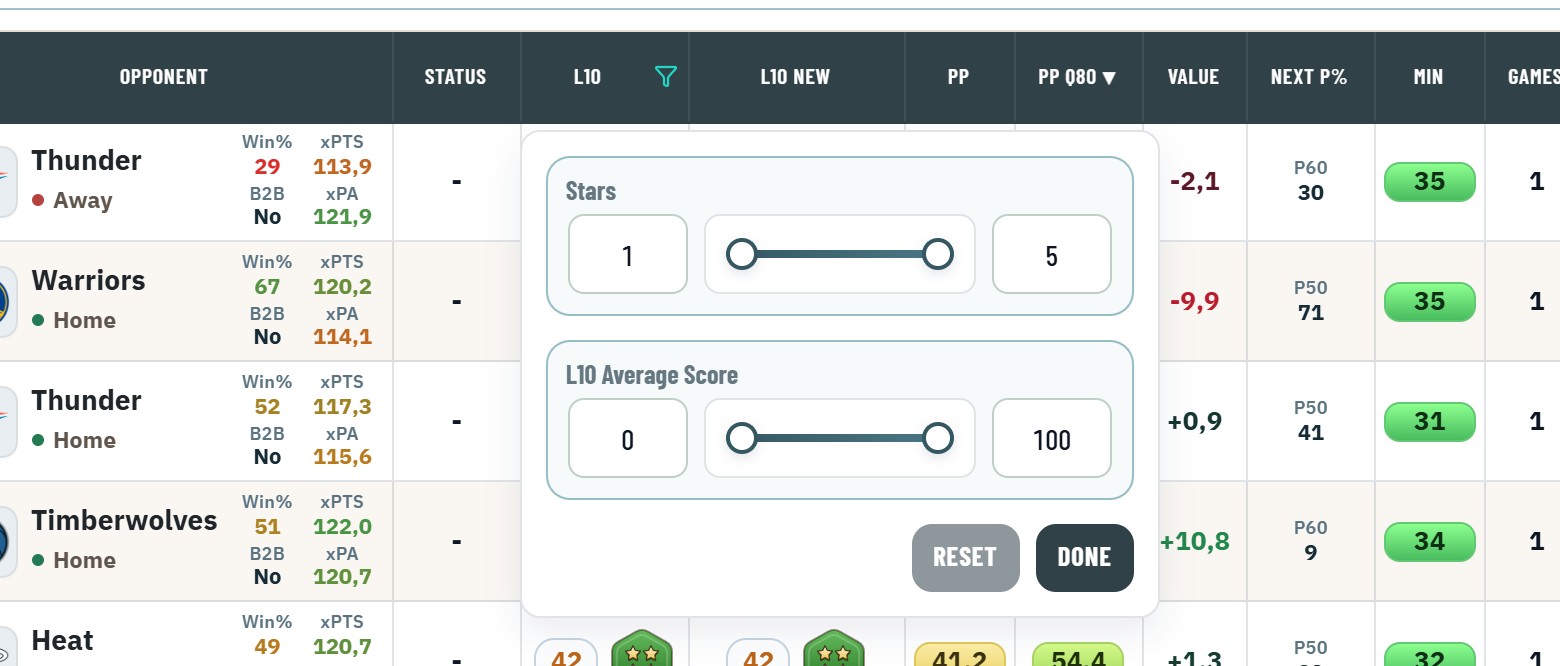
On a phone the funnel shows on the columns you have filtered: tap it to change or reset that filter. New filters you set in the Data Filters.
Your filters at a glance

- Every filter that differs from its standard shows as a chip in the closed Data Filters bar.
- A chip reads like its field: Start % ≥ 70, L10 40–80, Position: Forward, Listed.
- The × on a chip sets that one filter back to its standard, and the table follows at once.
- A click on the text of a chip opens the filters.
- When the chips do not fit in one line, +N lists them all, each with its ×.
- Reset Filters beside the chips sets every filter back.
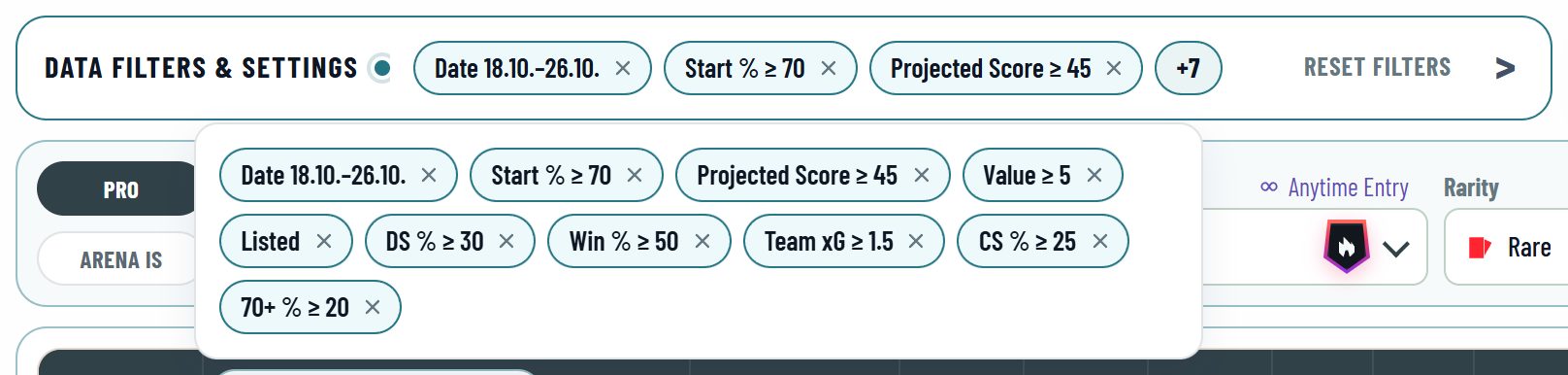
The choices of the context bar above the table, such as the competition, the rarity or the player pool, stay in view and get no chip. The dot beside Data Filters & Settings marks the filters of the panel only.
The same groups on every tab
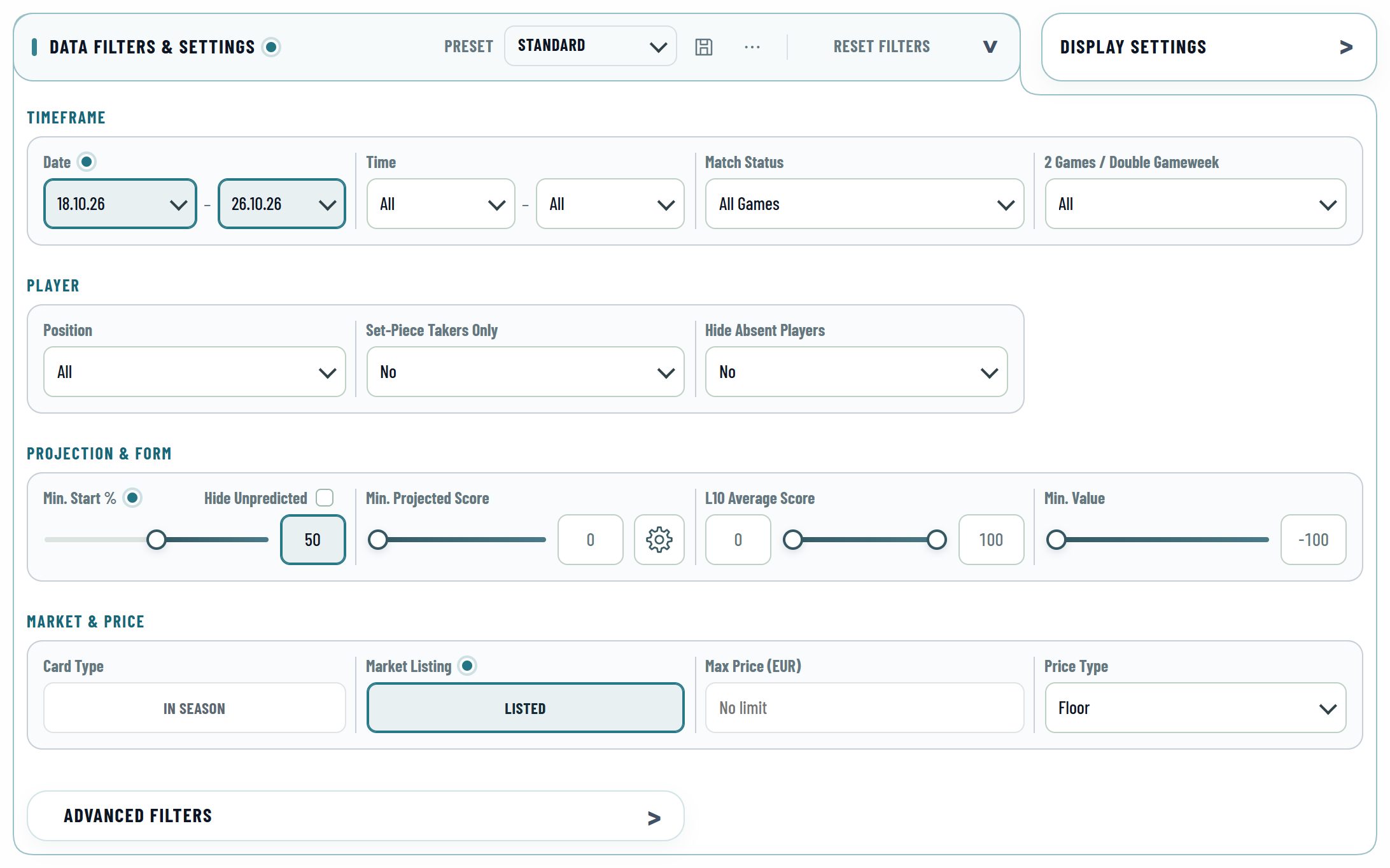
Every filter has its place in a named group, and a group has the same name wherever it appears. Up to four fields sit side by side, small groups share a row, and a thin line marks where one field ends and the next begins. Field labels are written as they read; capitals mark headings and buttons only.
| Tabs | Groups |
|---|---|
| Football players | Timeframe, Player, Projection & Form, Mission, Suspensions, Market & Price, My Cards; in Advanced Filters Player Performance, Match Forecast, Recent Form, Team & Competition, Possession |
| Football teams | Timeframe, Team & Competition, Match Forecast, Performance, Home, Away, Overall, Next 3, Next 5, My Cards; in Advanced Filters Possession |
| NBA players | Timeframe, Player, Projection & Form, Minutes, Mission, Market & Price, My Cards; in Advanced Filters Player Performance, Team & Conference |
| NBA teams | Timeframe, Team & Conference, Schedule, Depth, Player, My Cards |
| Cards and market | Timeframe, Cards, Player, Projection & Form, Market & Price, Sealing, Collection, Mission, Rewards and more |
Timeframe always opens the Data Filters.
One projected score field
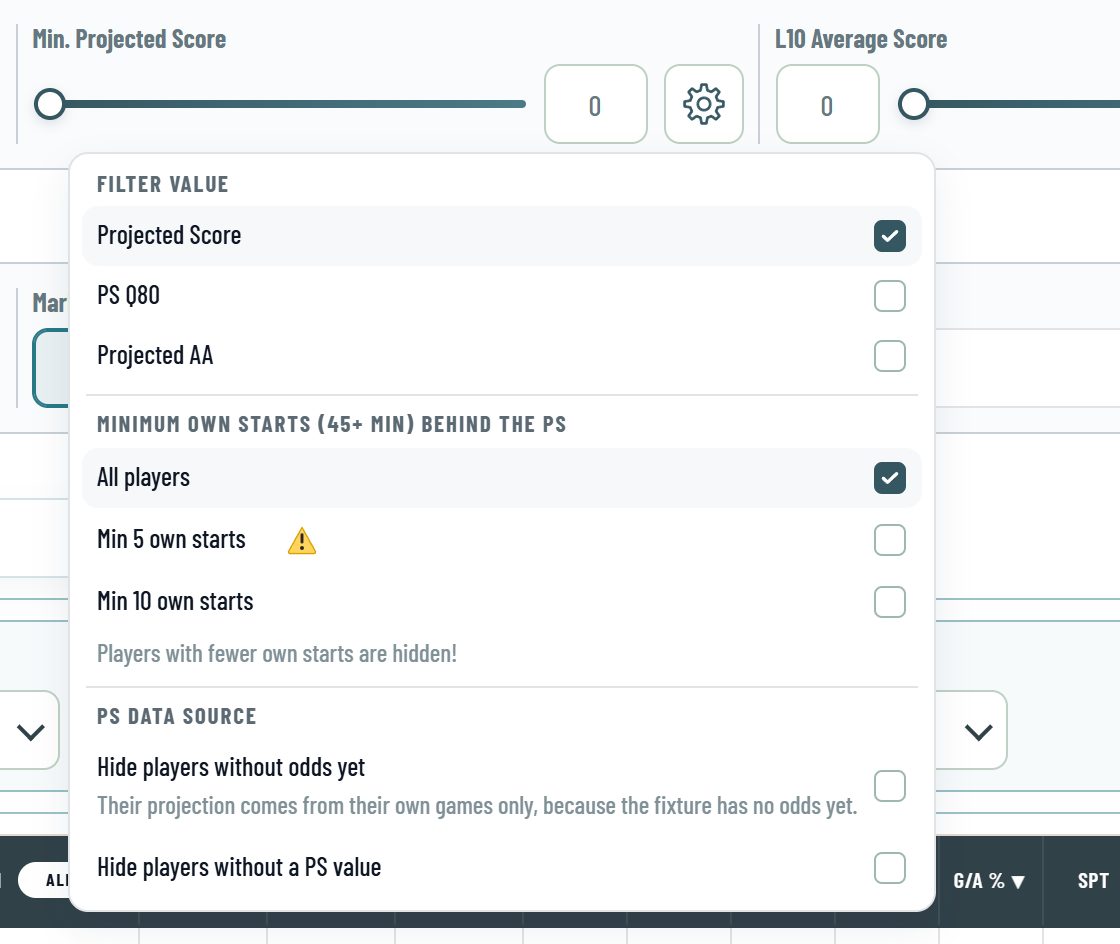
The gear beside the projected score chooses which value its slider filters: the Projected Score, its ceiling PS Q80 or the Projected AA. The same menu keeps the minimum own starts behind a projection and the PS data source.
New standards
- Match Status starts on All Games in the Player DB, My Players, Set Players, Fixtures, Set Fixtures and Team Forecast, so finished games of the period stay in the list. The Lineup Builder keeps Upcoming Games.
- Time Horizon reads Any Time or Next 24 to Next 96 Hours.
- Set Collect Missions shows incomplete collections only, and Collect Missions has its own Mission Completion field.
- Presets and Reset Filters sit quietly in the header of the open filters.
On the phone
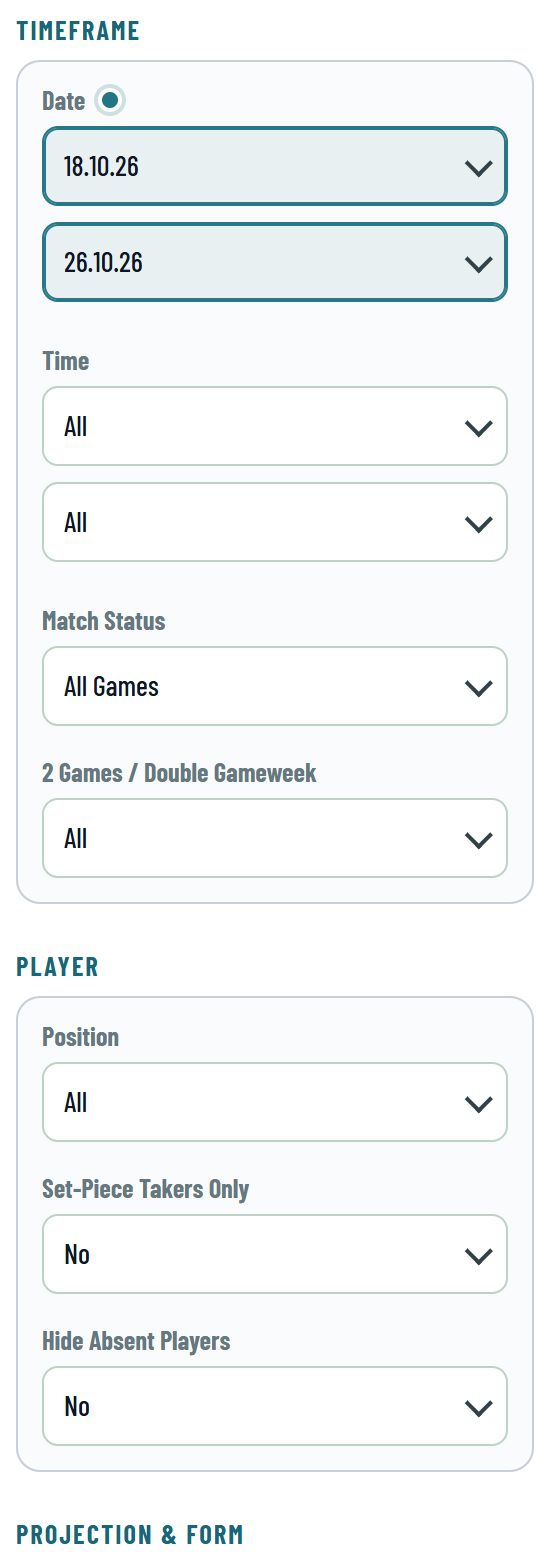
On a phone the groups stack in one column, and a range such as Date or Time shows its from and to values below each other, so a long value is never cut.