Match Center:your matches, your notifications
Pin your matches, choose your alerts and set up SoProb on Android, iPhone or PC. Here is how to get started.
Follow the matches that matter to you without keeping the Match Center in front of you. Pin games for quick access and use the bell to receive push notifications for selected match events. The screenshots use the light theme; everything works the same in dark mode.
Pin a match or follow it with the bell
In Game Select, each match has a pin and, until it is finished, a bell on its right.
- Use the pin to keep a match at the top of your match list. Pinned matches keep their usual order among themselves, and the current filters still apply.
- Use the bell to follow a match. Followed matches belong to your account: every device with notifications enabled receives their alerts. If no device is enabled yet, your browser asks for permission the first time.
- Pinning and notifications are independent: a pinned match does not automatically send alerts.
- An active pin or bell is outlined and its icon turns red. Tap the bell again to stop following that match. Finished matches no longer show the bell.
Above the matches, a notice shows whether this device receives match notifications. Choose Enable there to register the device; your followed matches then apply to it as well.
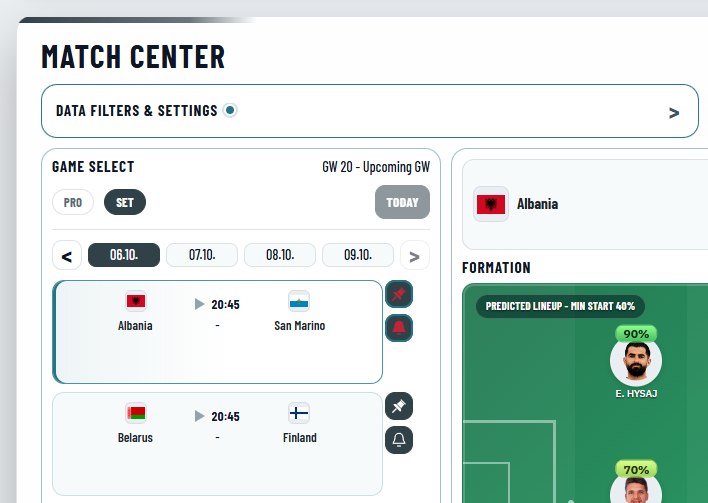
Know what happened and who was involved
Player notifications include the player name, team, event and match minute when available. The title identifies the fixture. Goals and assists can produce separate notifications, so you can follow both the scorer and the player who provided the final pass.
Before kick-off, Starting lineups tells you when a team's official lineup is available. During the match you can be notified about goals, assists, own goals, yellow cards, red cards including second yellows, substitutions, penalties won, penalties conceded, penalties saved, penalties missed, goalkeeper clean sheets, last-man tackles, goal-line clearances, errors leading to goals and other decisive events. Full time reports the final score.
Alerts depend on events supplied by Sorare. Not every score change is an event, and an assist can only be reported when the source identifies the assister. Updates may arrive with a delay; notifications are not a second-by-second live commentary.
Choose your alerts in Display Settings
Open Match Center → Display Settings → Push Notifications. Under Event Types, select only the events you want. All event types are on until you change them. For example, keep Goals, Assists and Full time enabled, or add Starting lineups, Red cards and Substitutions for more detail.
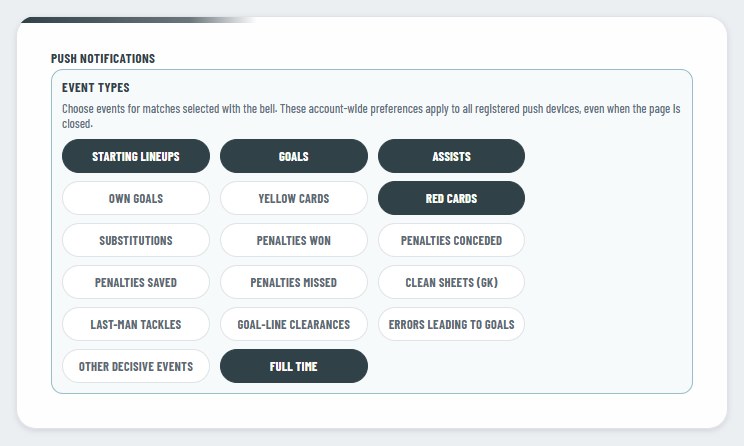
- Event preferences apply to your account across devices.
- Followed matches apply to your account as well. Each phone or computer only needs notifications enabled once.
- Turning off every event type stops event alerts even if a match bell remains active.
- Changing a match filter does not stop following a match.
Android: install SoProb or use Chrome
- Open https://soprob.com in Chrome and sign in.
- To add SoProb to your home screen, open the Chrome menu and choose Add to home screen, then Install if offered. Menu wording can vary by device and Chrome version.
- Open SoProb from the new icon. Sign in again if needed.
- In Match Center, choose Enable in the notice above the matches and allow notifications. Check that Android also allows notifications for Chrome or the installed web app.
Installation is optional for supported Android browsers: you can also enable push directly from the website in Chrome. Installing gives you a convenient app icon; it does not automatically enable notifications.
Chrome help: install and use web apps
iPhone and iPad: add SoProb to your Home Screen
Web push requires iOS or iPadOS 16.4 or later and a Home Screen web app, rather than an ordinary browser tab.
- Open https://soprob.com in Safari.
- Open the Share menu and choose Add to Home Screen. Keep Open as Web App enabled if that option is shown, then tap Add.
- Launch SoProb from its new Home Screen icon and sign in.
- Open Match Center, tap Enable in the notice above the matches and allow notifications.
- Choose your event types under Display Settings → Push Notifications.
If you previously denied permission, check the SoProb notification settings in iOS Settings. Focus modes and notification settings can silence or delay visible alerts.
Apple help: turn a website into an iPhone web app
WebKit: Web Push on iPhone and iPad
PC: browser notifications and optional installation
- Open https://soprob.com in a supported browser such as Chrome or Edge and sign in.
- Open Match Center, choose Enable in the notice above the matches and allow notifications for the site. Installation is not required for desktop browser push.
- To install in Chrome, use the install icon in the address bar when available, or the menu option Cast, save and share → Install page as app.
- In Edge, use the Apps menu and its installation option. Labels may differ between browser versions.
- Open the installed SoProb app and check the notice above the matches; choose Enable if this device is not registered yet.
Also allow notifications for your browser or web app in Windows settings. Do Not Disturb can hide banners. The SoProb web app is separate from the Sorare Probabilities browser extension; installing the extension is not required for match alerts.
Do I need to leave the page open?
Web push can deliver notifications while you are not viewing SoProb. Delivery still depends on an internet connection, browser support and device settings. A powered-off device, a force-stopped browser, battery restrictions or notification blocking can prevent or delay delivery.
Each device needs its own permission: allowing notifications on your PC does not enable them on your phone. Your followed matches and event types, however, apply to every enabled device, up to five per account. Newly following a match does not replay its entire event history.
No alert? Check these first
- Are you signed in, is the match bell active, and are notifications enabled on this device?
- Is the relevant event type enabled under Display Settings → Push Notifications?
- Are website and operating-system notification permissions enabled?
- On iPhone or iPad, did you launch SoProb from the Home Screen icon?
- Is the match still running, and has Sorare supplied the event?