A New Start Page:Your Areas at a Glance and Guides for Pro and Set
Start now shows one area per plan in its own colour, with the next gameweek, your steps, your cards and the competitions ahead, and new guides walk you through Pro and Set step by step.
Start is the first page you see after signing in. It now shows one area for each plan you have, Pro, Set and NBA, each in its own colour, with what matters for the next gameweek and a direct way into the right tab. The new Guides menu walks you through Pro and Set step by step.
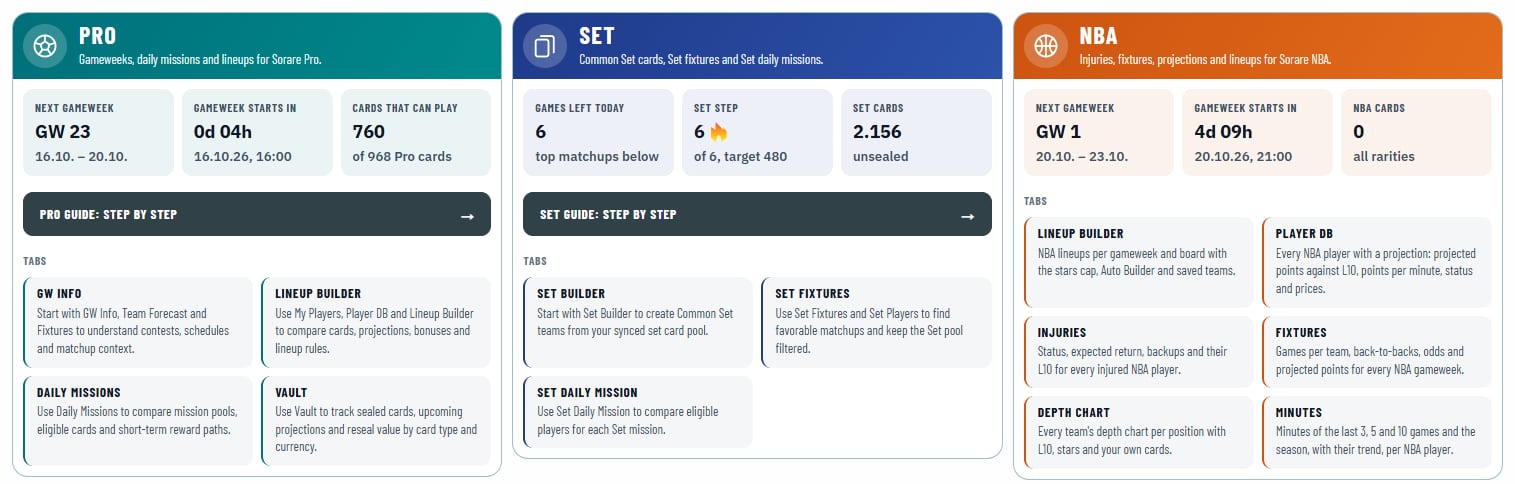
One area per plan
You see the areas your plan includes, each built the same way:
- A banner in the area's colour that shows how long your access runs.
- Three facts for the next gameweek.
- The area's guide, step by step.
- Its tabs, each with a line on what it shows.
- Its details: the competitions for Pro, today's top matchups for Set.
| Area | The three facts |
|---|---|
| Pro | The next gameweek with its dates, the time until it starts and how many of your Pro cards can play |
| Set | The games left today, your Set step with its target and your Set cards |
| NBA | The next or running gameweek, the time until it starts or ends and your NBA cards |
The colour stays with you: the strip above a tab's title and the open menu item take the colour of the area the tab belongs to.
The next gameweek's competitions with your Pro step
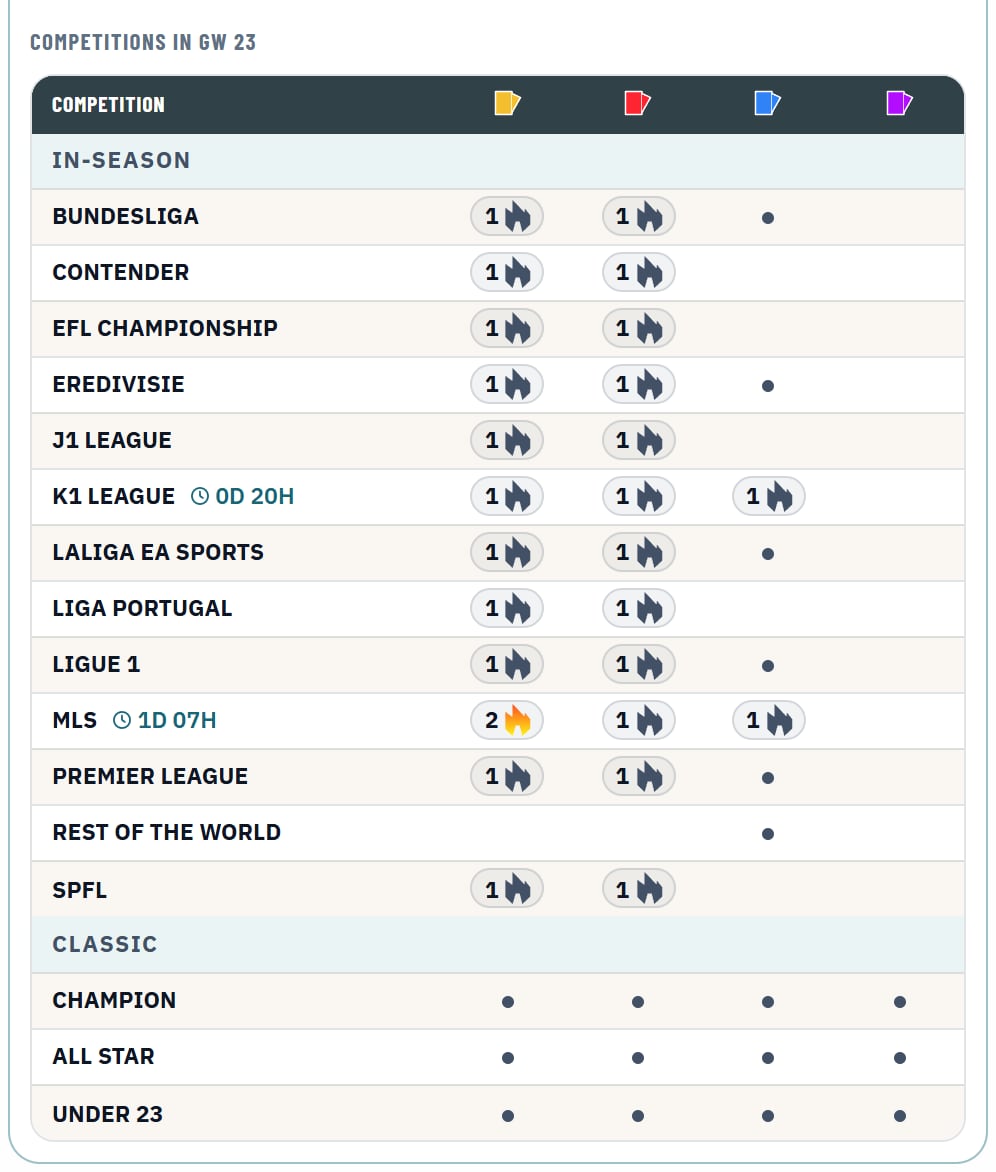
The Pro area lists every competition of the next gameweek in one table, In-Season first and Classic below, with a column per rarity:
- A number with Sorare's flame is the Pro step you are on, the same as in the Lineup Builder. Hover it for the step's target.
- A dot marks a rarity the competition runs in without a step.
- A clock marks competitions whose entry closes later than the gameweek, such as MLS and K1 League, with the time left.
For MLS and K1 League the step now shows the target Sorare sets for your next lineup, also while the current gameweek is still running. Before, it could stay one step behind until that gameweek was settled.
Your cards, the news and the articles
Below the areas, every area has its own card tile with its own Sync button: your Pro cards by rarity and by position for the next gameweek, your Set cards and your NBA cards by rarity.
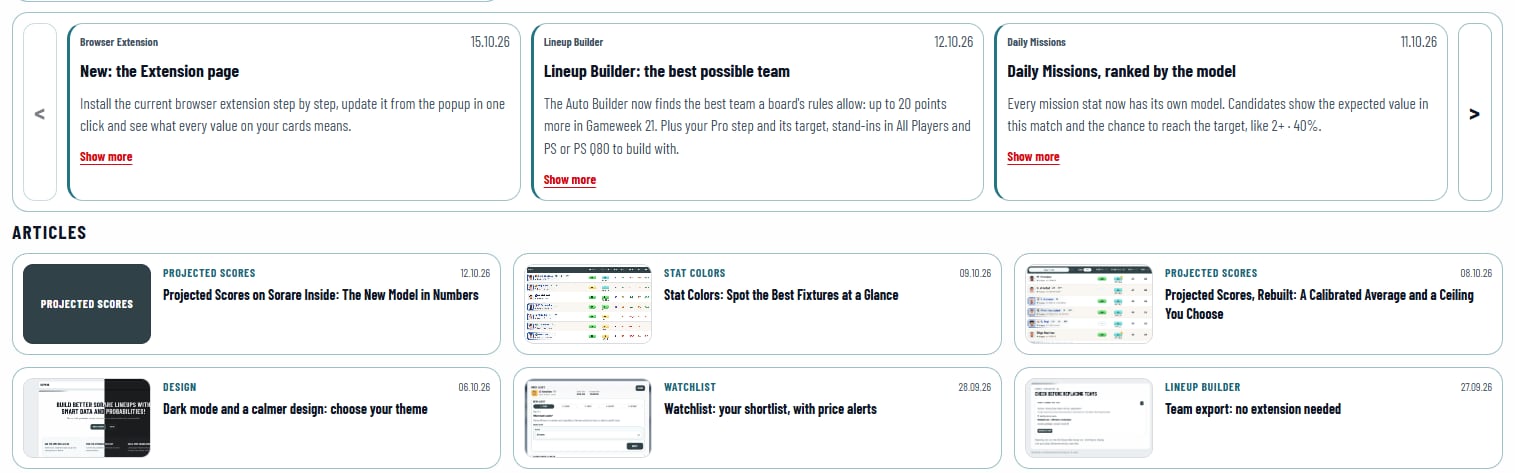
Latest news shows the three newest updates first, and Show more opens the article. Articles lists the other articles, each with a small picture. The newest article also shows as a banner above every page until you read or dismiss it.
Guides for Pro and Set
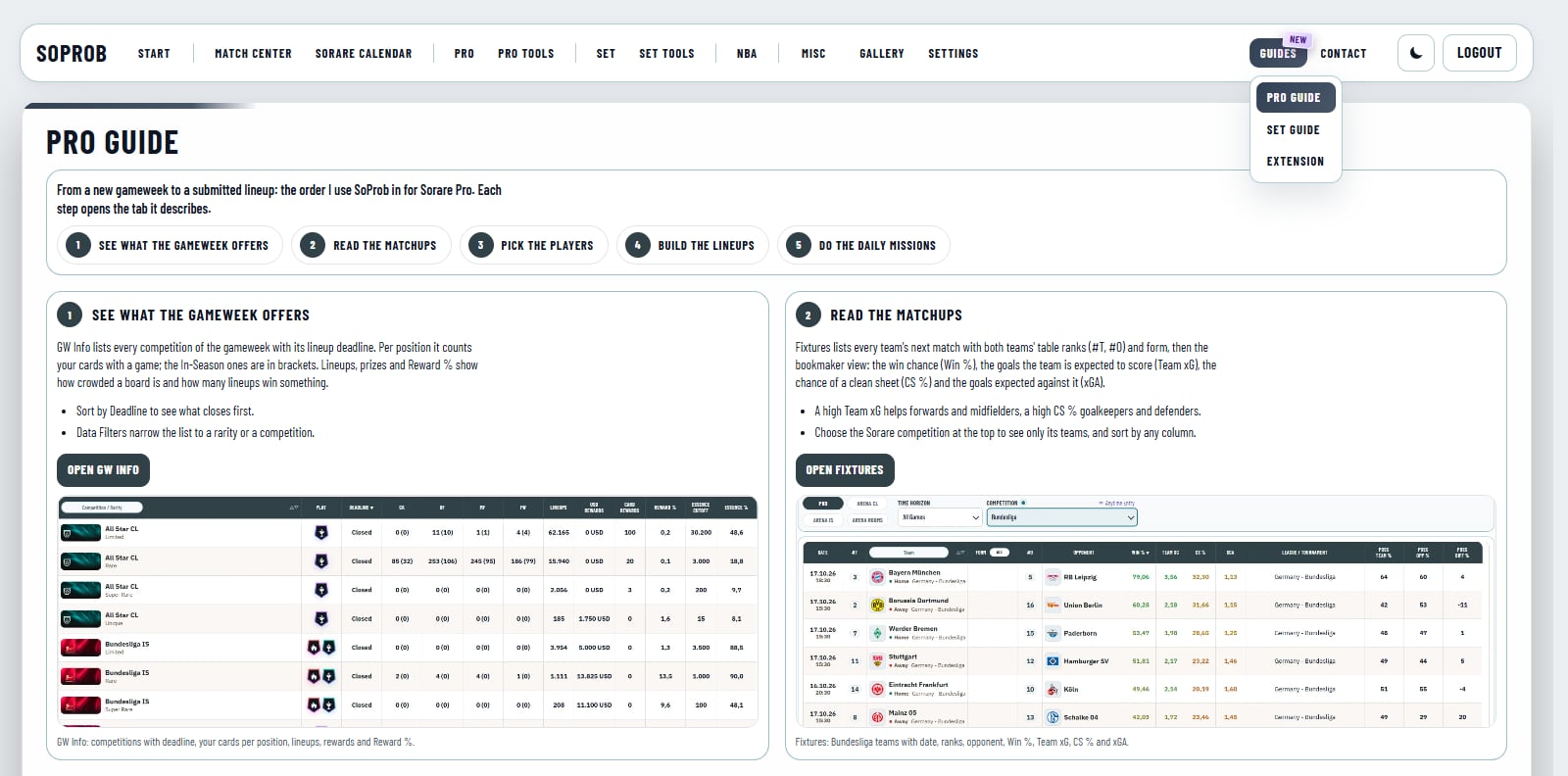
The new Guides menu holds the Pro Guide, the Set Guide and the Extension page. Each guide is the order I use SoProb in, in five steps from a new gameweek to a submitted lineup:
| Step | Pro Guide | Set Guide |
|---|---|---|
| 1 | See what the gameweek offers | See the Set games |
| 2 | Read the matchups | Pick the players |
| 3 | Pick the players | Build the Set lineups |
| 4 | Build the lineups | Do the Set daily mission |
| 5 | Do the daily missions | Work on the collect missions |
Every step says what to look at, opens its tab in one click and shows a screenshot you can open in full size. Below the steps, each guide lists more tools and explains the values it uses. The Pro Guide comes with the Pro plan and the Set Guide with the Set plan; the guide button in each area on Start opens them too.
Also new
- Fixtures starts with the Competition column hidden. Switch it back on under Display Settings.
- Daily Missions and the Set DS Picker offer only the games that count for the mission on Sorare: a game early the next morning that already belongs to the next mission day no longer shows.
- When the export of a daily mission to Sorare fails, the reason now shows right below the mission.