Watchlist:your shortlist, with price alerts
Keep the players you are watching in one place. Compare In-Season and Classic offers, follow their scores and set a price alert in five guided steps.
The Watchlist brings your shortlist, cached market prices and price alerts together. Create separate lists for different plans, add the exact player position and rarity you want, and let an alert watch for matching offers. This guide uses the desktop layout; the screenshots show example selections and illustrative prices, not live market quotes. They use the light theme; everything works the same in dark mode.
Before you start
Sign in to SoProb with Pro access and open Watchlist under Pro Tools. Connect your Sorare account if the dashboard asks you to. These are your SoProb lists, saved to your account; this feature does not import your Sorare website watchlists and does not require the browser extension.
1. Choose a list and add players
Select a list in the Watchlist field. My Watchlist is created automatically when you do not have a list yet. For another shortlist, open the three-dot menu beside the list and choose New watchlist, then enter a name and click Create. You can also use the Create new watchlist icon beside the selector.
Choose the Rarity beside Add Player, type the player's name and click the plus button on the correct search result. Check the position shown beside the name: a Forward and a Midfielder version are separate entries, even when they belong to the same player. The selected rarity is saved with that entry.
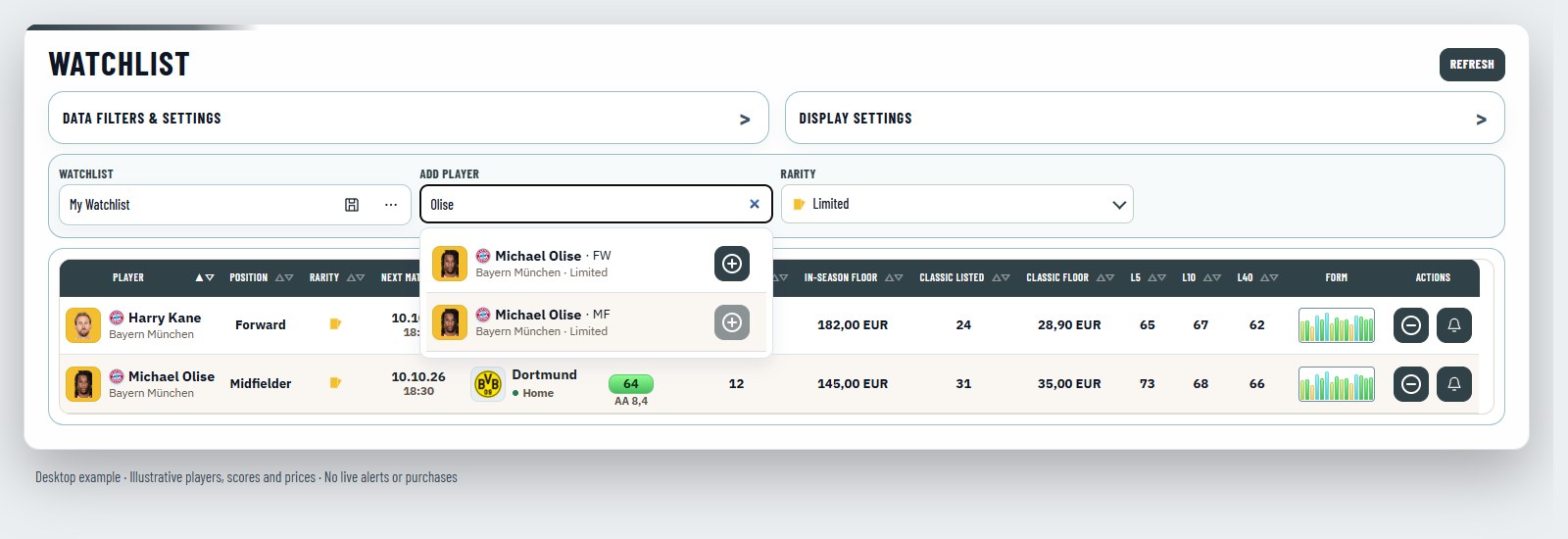
Switch lists with the Watchlist selector. The minus button in a row removes that entry; it does not remove the player's other positions or rarities. To delete a whole list, use the three-dot menu and confirm Delete watchlist.
2. Read your shortlist
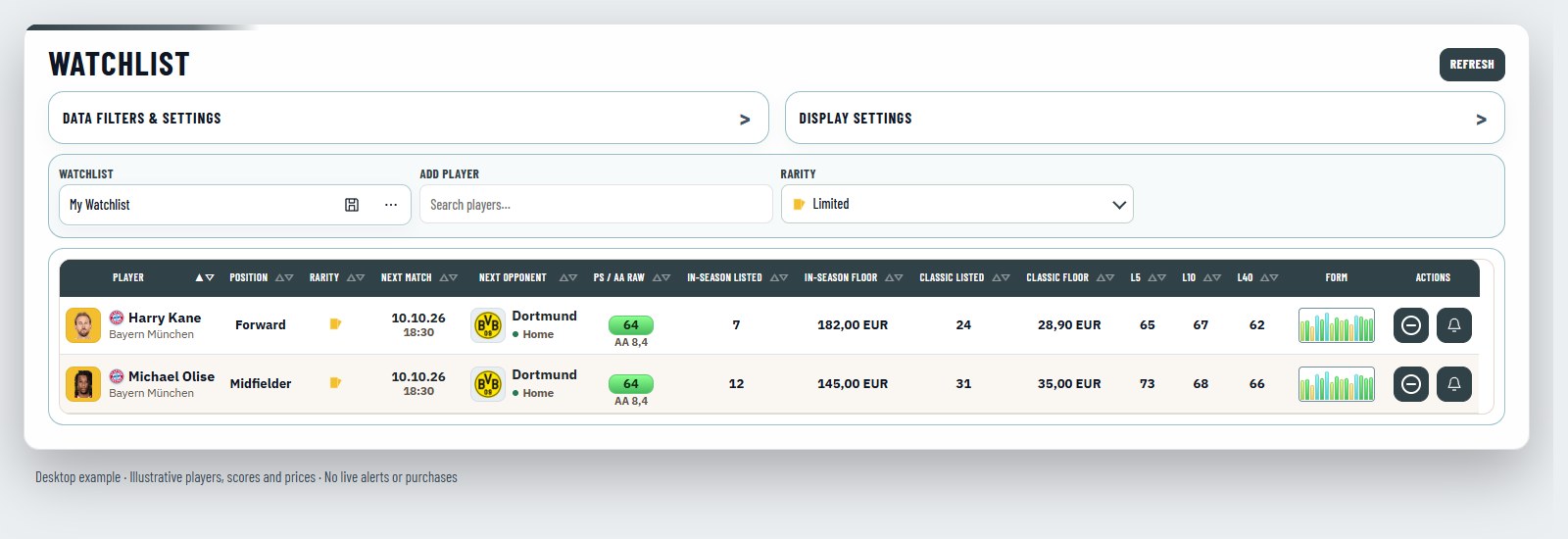
- In-Season Listed and Classic Listed count distinct cards in qualifying active individual manager offers recorded in the DB. Auctions, bundles and sold or expired offers are excluded.
- In-Season Floor and Classic Floor show the lowest cached price for that player, position and rarity in your chosen currency, across card teams and editions. Click an available floor price to open the matching card on Sorare.
- Next Match and Next Opponent show the upcoming fixture available in the DB. PS / AA Raw is the SoProb projection before bonuses; an L10 badge identifies an average used as a fallback, not a model prediction.
- L5, L10 and L40 use the imported Sorare averages for that position. L40 stays unavailable until the Sorare import has populated it in the cache. Form shows up to 15 recent cached team matches; hover the chart for details. A dash means unavailable, not zero.
Open Data Filters & Settings to filter the displayed Rarity. That rarity filter only changes which saved entries you see; it does not change the rarity you added. Prices use the Currency you choose in Settings > Preferences, the same for every tab. Refresh reloads the stored data, not the live Sorare marketplace. Prices and counts can lag behind current offers, so always check Sorare before buying.
3. Start a price alert with the team
Click the bell in the player's Actions column. The header keeps the player, rarity and cached floors in view. The wizard then takes you through Team, Cards, Price, Notify and Review. Use Next to continue and Back to change an earlier choice.
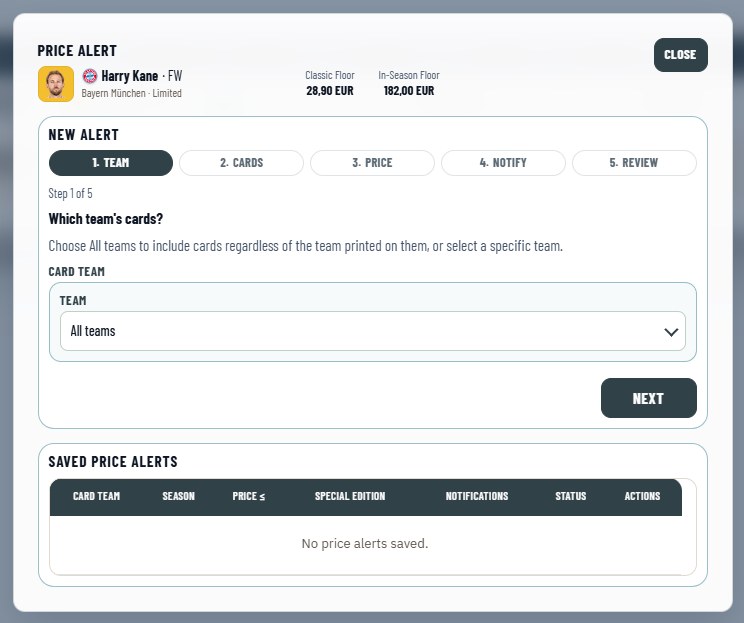
All teams is the default when multiple teams are available. This is the team printed on the card, not necessarily the player's current club. If only one choice exists, it is selected for you; the field stays visible but cannot be opened.
4. Choose card versions and a price limit
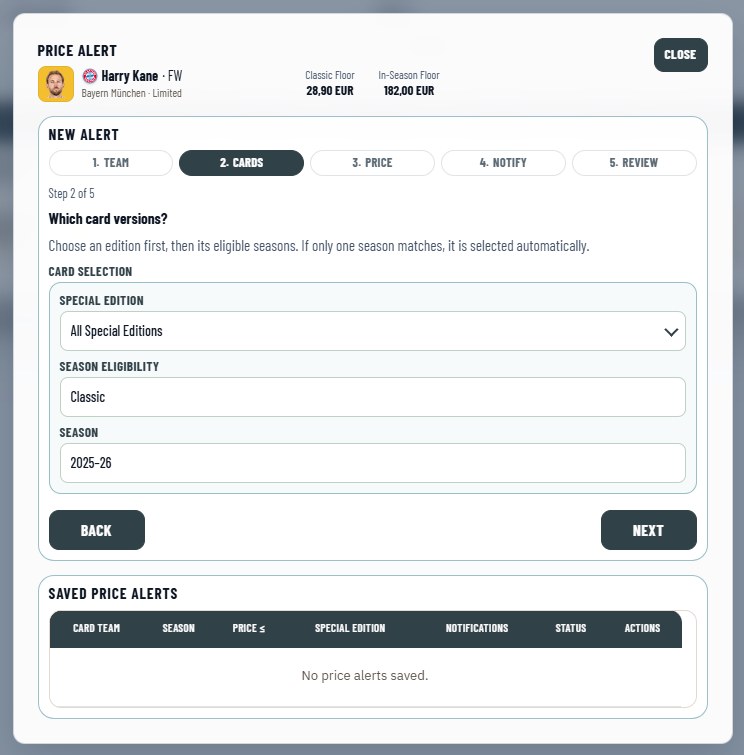
In Cards, select Special edition first. All editions includes standard and special cards; All Special Editions excludes standard cards. You can also select a specific edition. Season eligibility and Season then offer the matching choices from the cached catalog. A sole matching choice is selected automatically and remains visible without a dropdown arrow.
In Price, enter a positive maximum amount. Matching offers at or below that amount can trigger the alert. The currency comes from Settings > Preferences; there is no separate currency selector here. If you change currency while drafting or editing, enter the limit again rather than assuming the amount has been converted. Existing saved alerts keep their saved currency until edited.
The header floors are broad market references for the selected player, position and rarity. They do not narrow down when you choose a card team or special edition for the alert.
5. Choose notifications, review and save
Notify defaults to Ongoing, which keeps the alert active for further qualifying offers. Choose Once if you only want a one-time alert. In Review, check the card filters, amount and currency, then click Add alert.
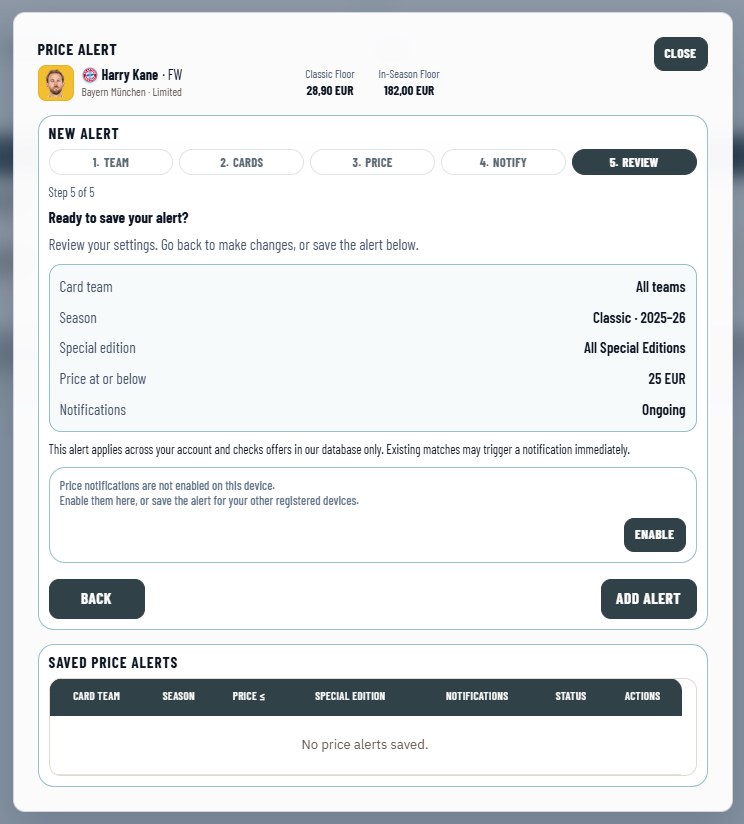
At this final step, an Enable notice appears if this device is not registered. Enable notifications on each browser or installed app where you want to receive them and allow the browser permission when asked. Alerts are account-wide and can use your other registered devices; saving an alert does not automatically activate every device. On iPhone or iPad, open the installed Home Screen app when enabling push.
Saved alerts appear below the wizard. Use the pencil to edit or the bin to delete an alert. Rules are shared across your devices but belong to that Watchlist entry: removing the entry or deleting its list also removes the linked alerts.
A few useful details
- Alerts monitor qualifying individual manager offers stored in the DB, not every possible Sorare sale format. Existing matching offers can trigger soon after you save; push delivery also depends on your device permissions and the notification service.
- An alert is a notification, not an automatic purchase or a price reservation. The offer may change or sell before you open it.
- In Display Settings, show, hide and reorder the columns. Hover overlays and help tooltips are switched on or off for every tab in Settings > Preferences; help tooltips need hover overlays.
- Where Player Pool is available in Player DB or the Lineup Builder, choose Watchlist to focus on watched players. Other eligibility and player filters still apply; adding a player to a list does not give you ownership of a card.